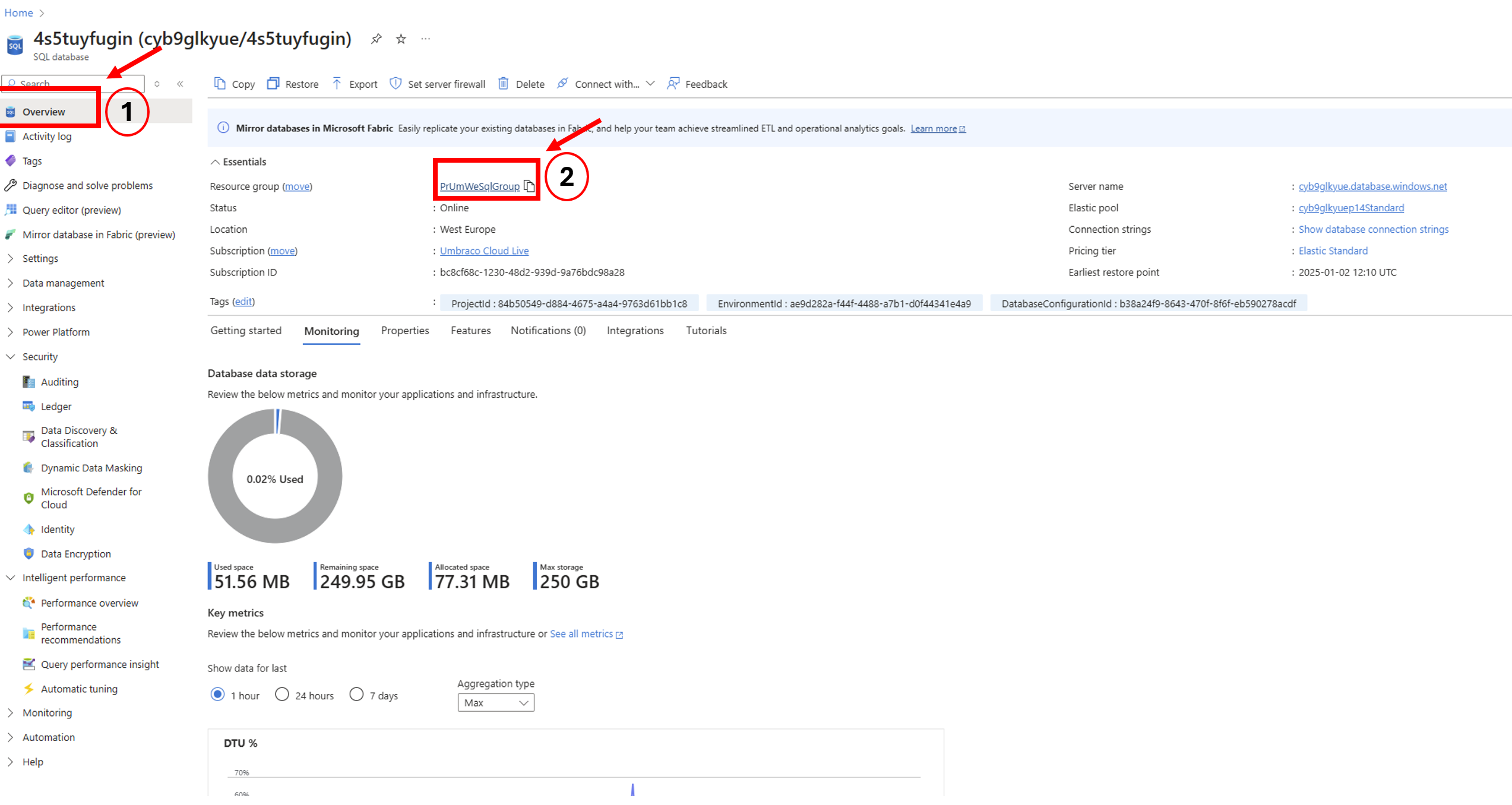
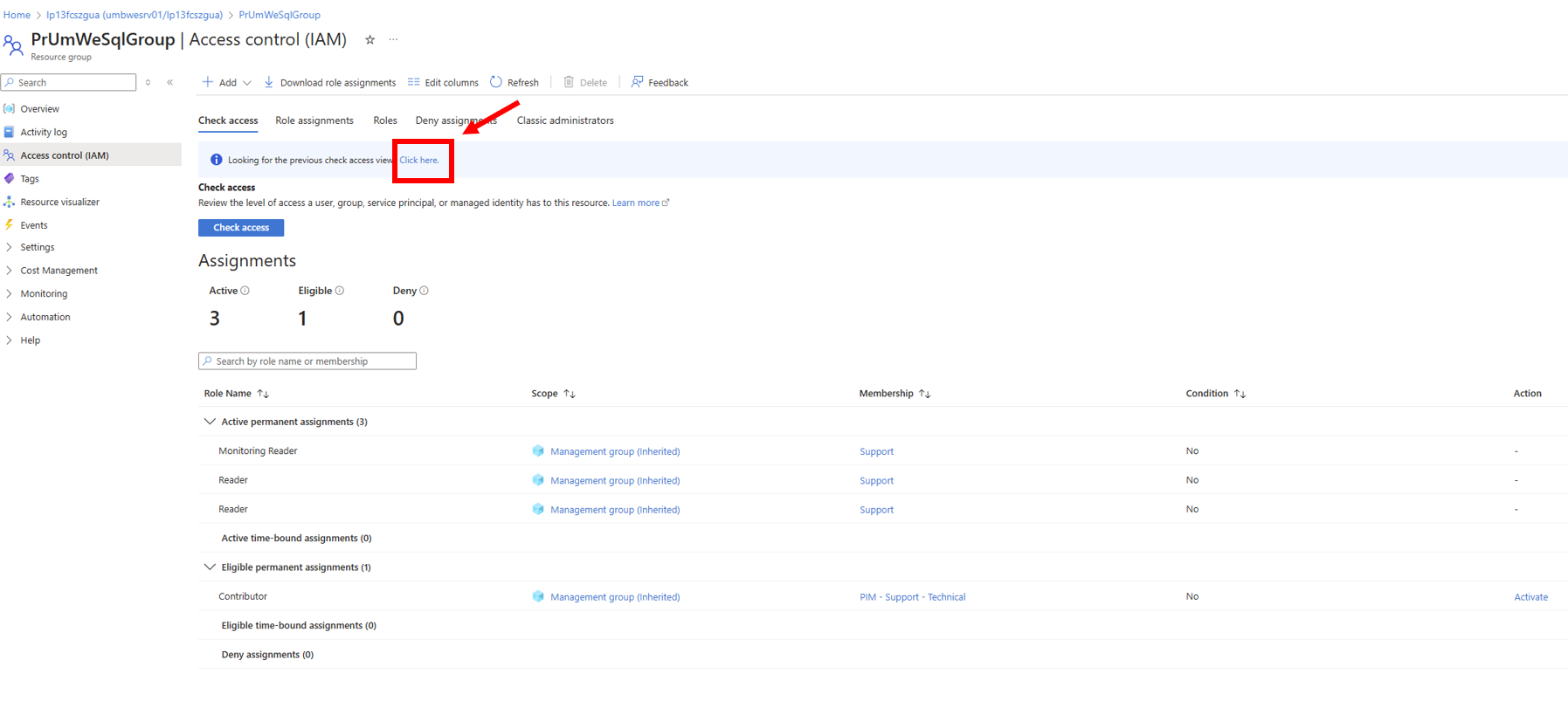
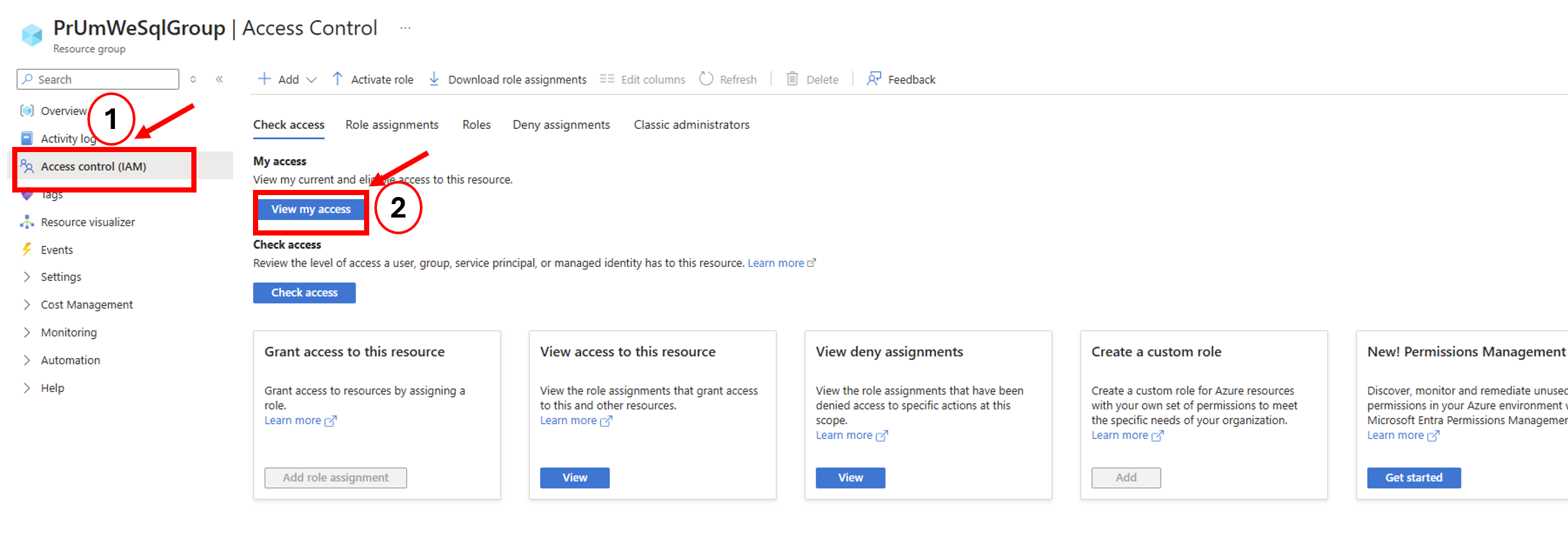
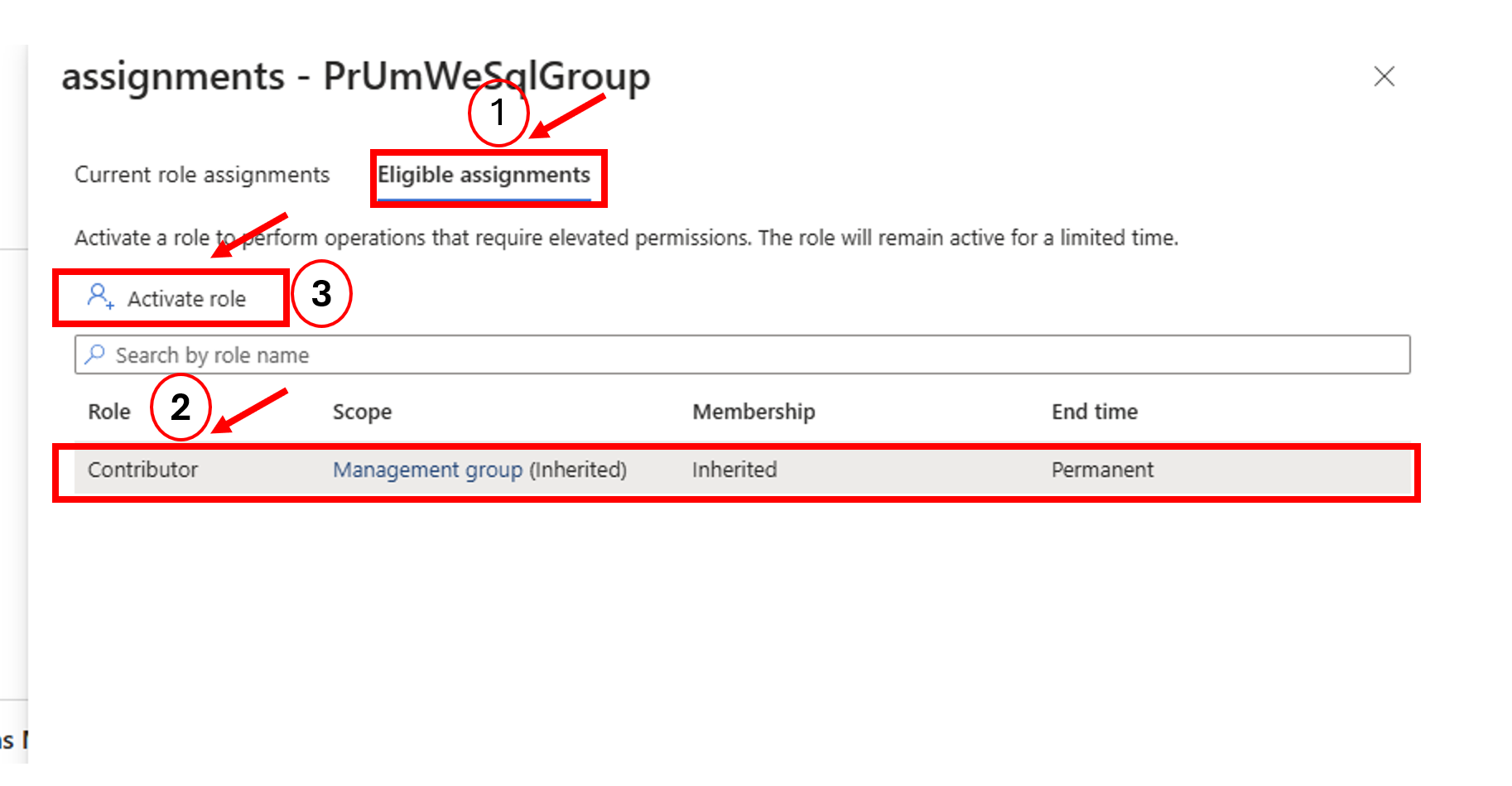
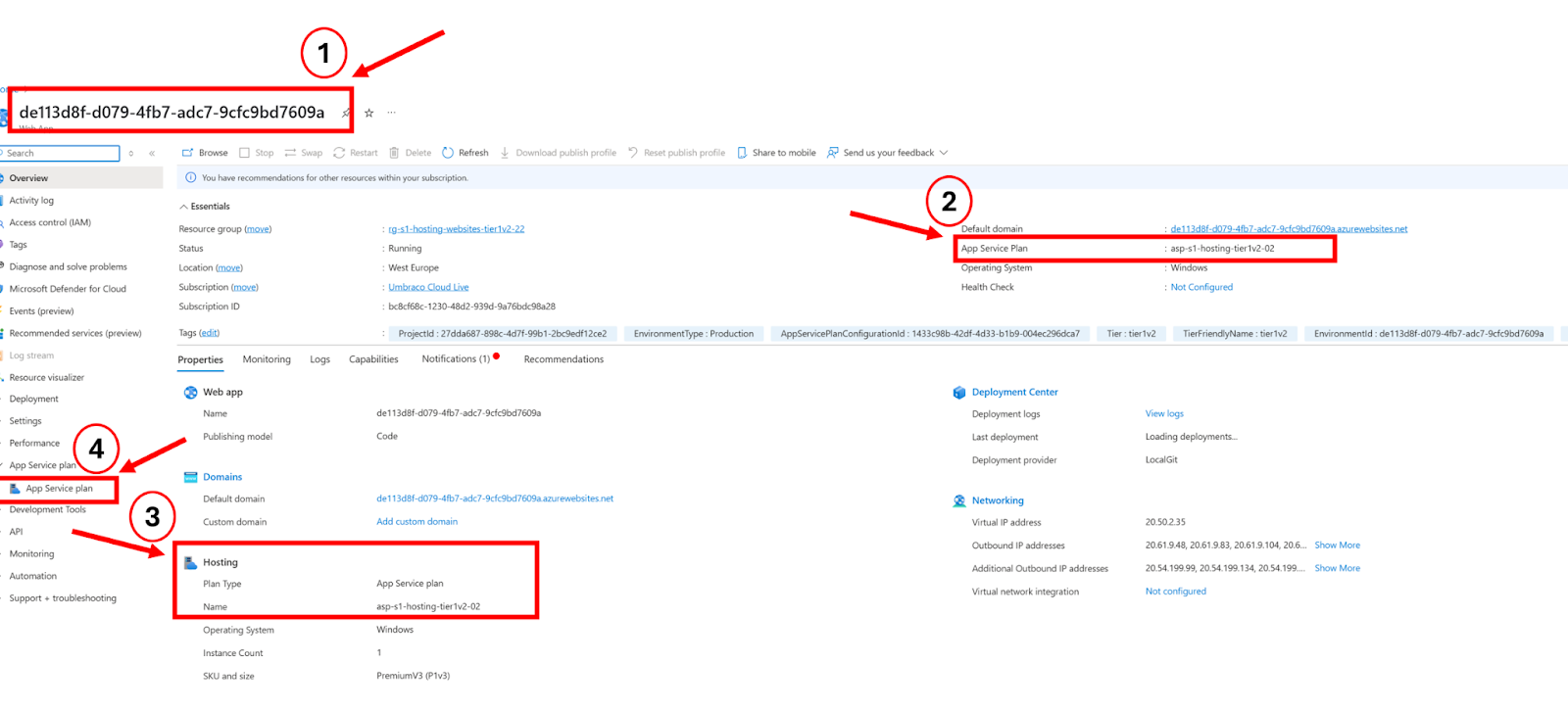
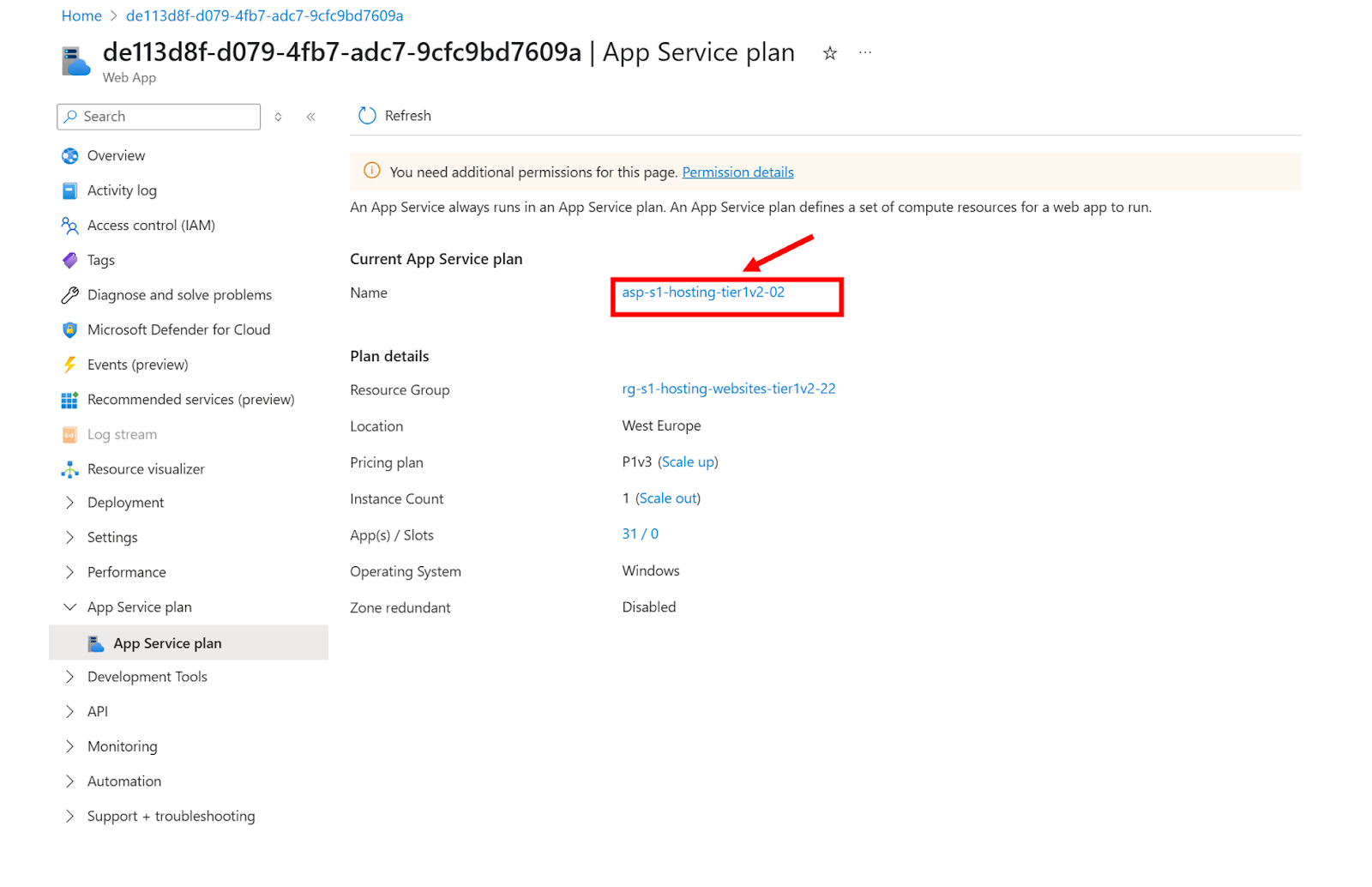
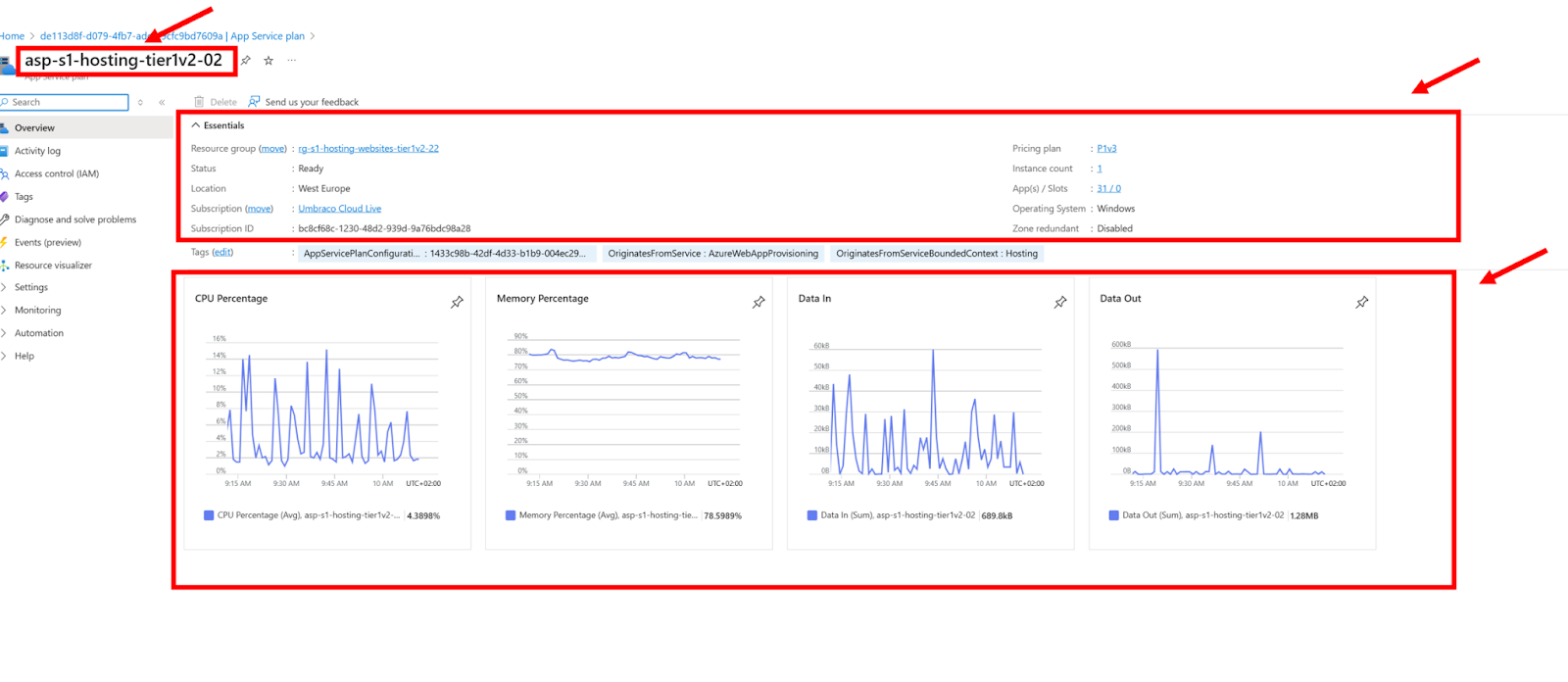
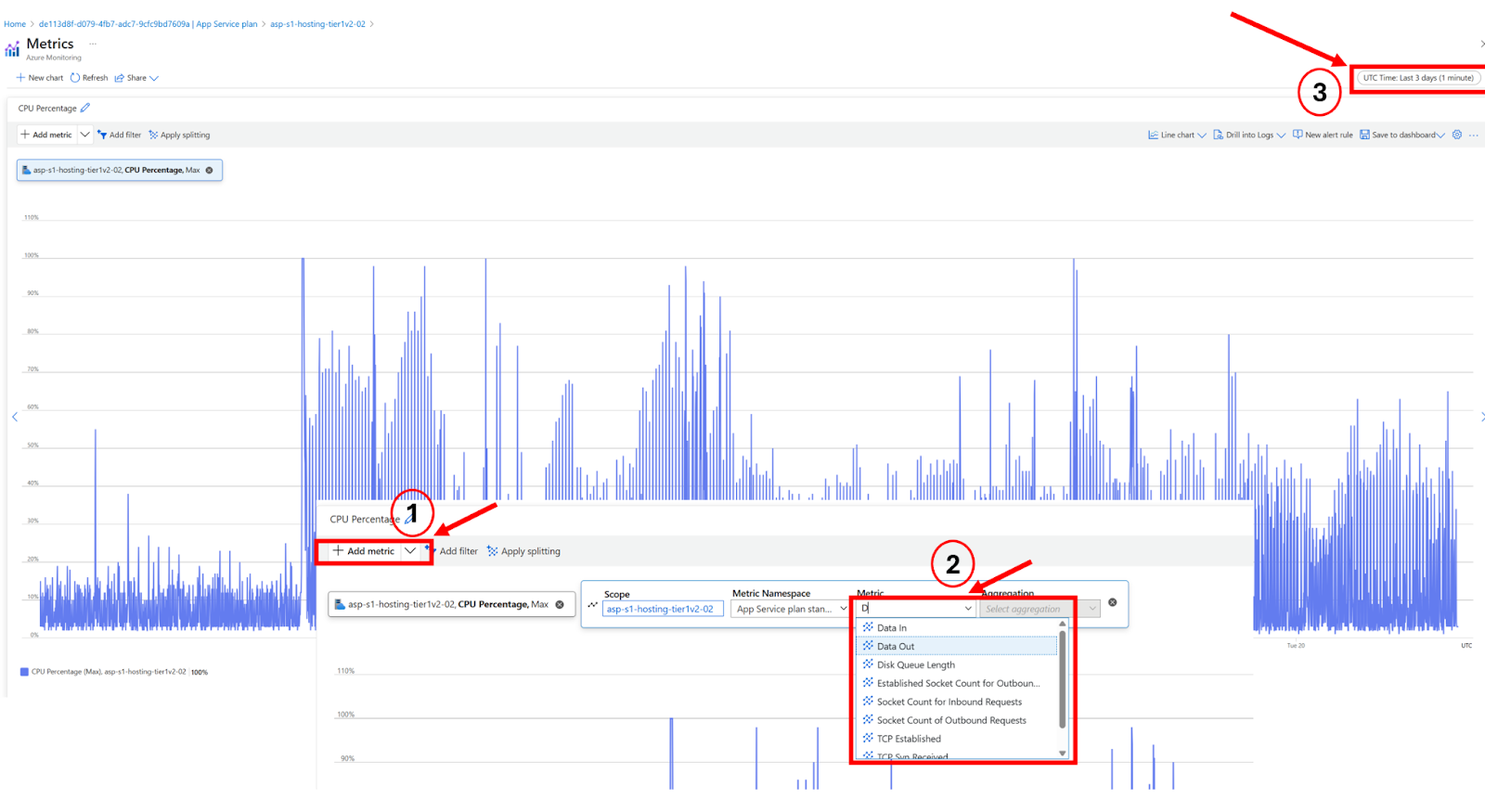
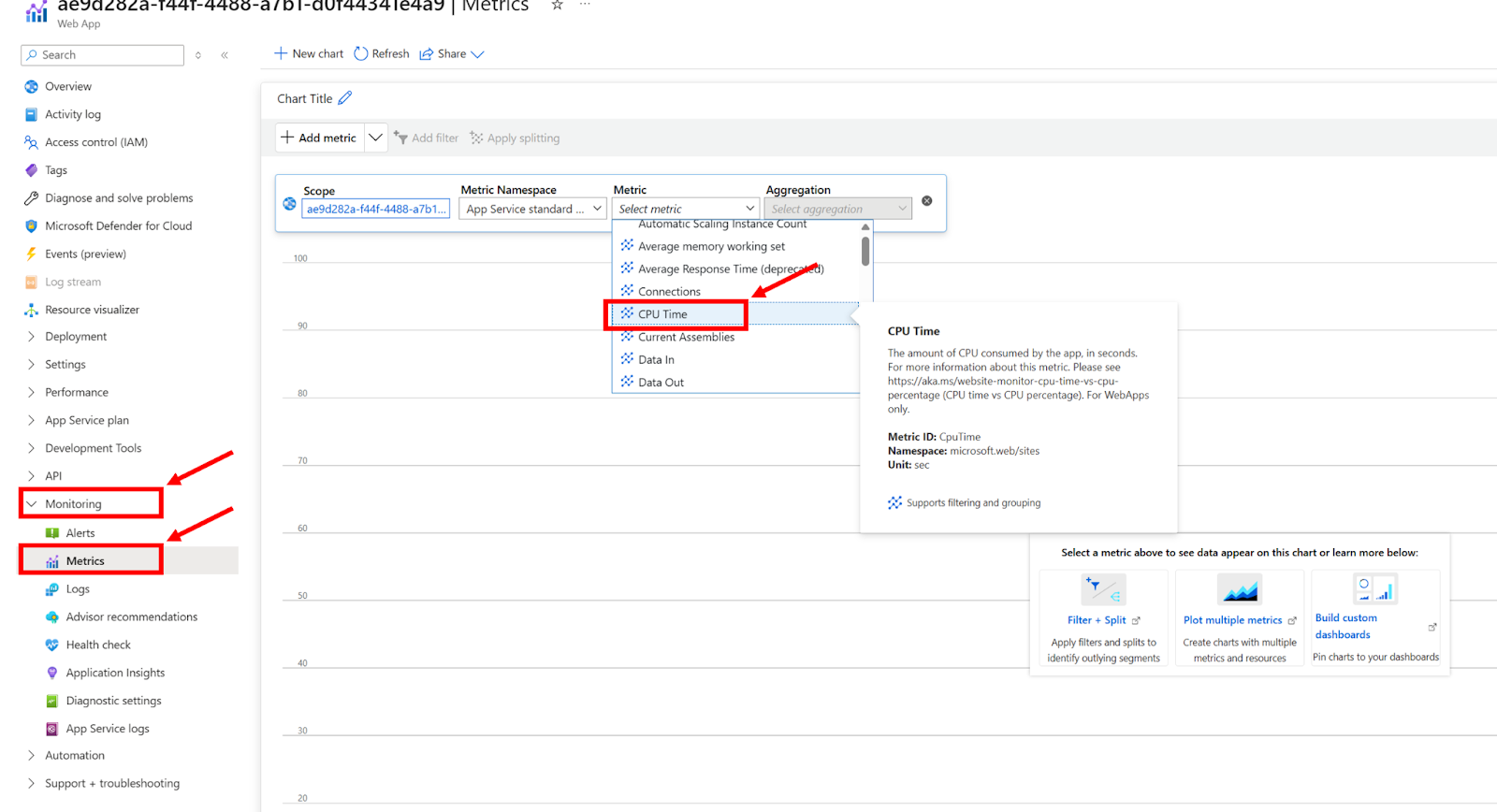
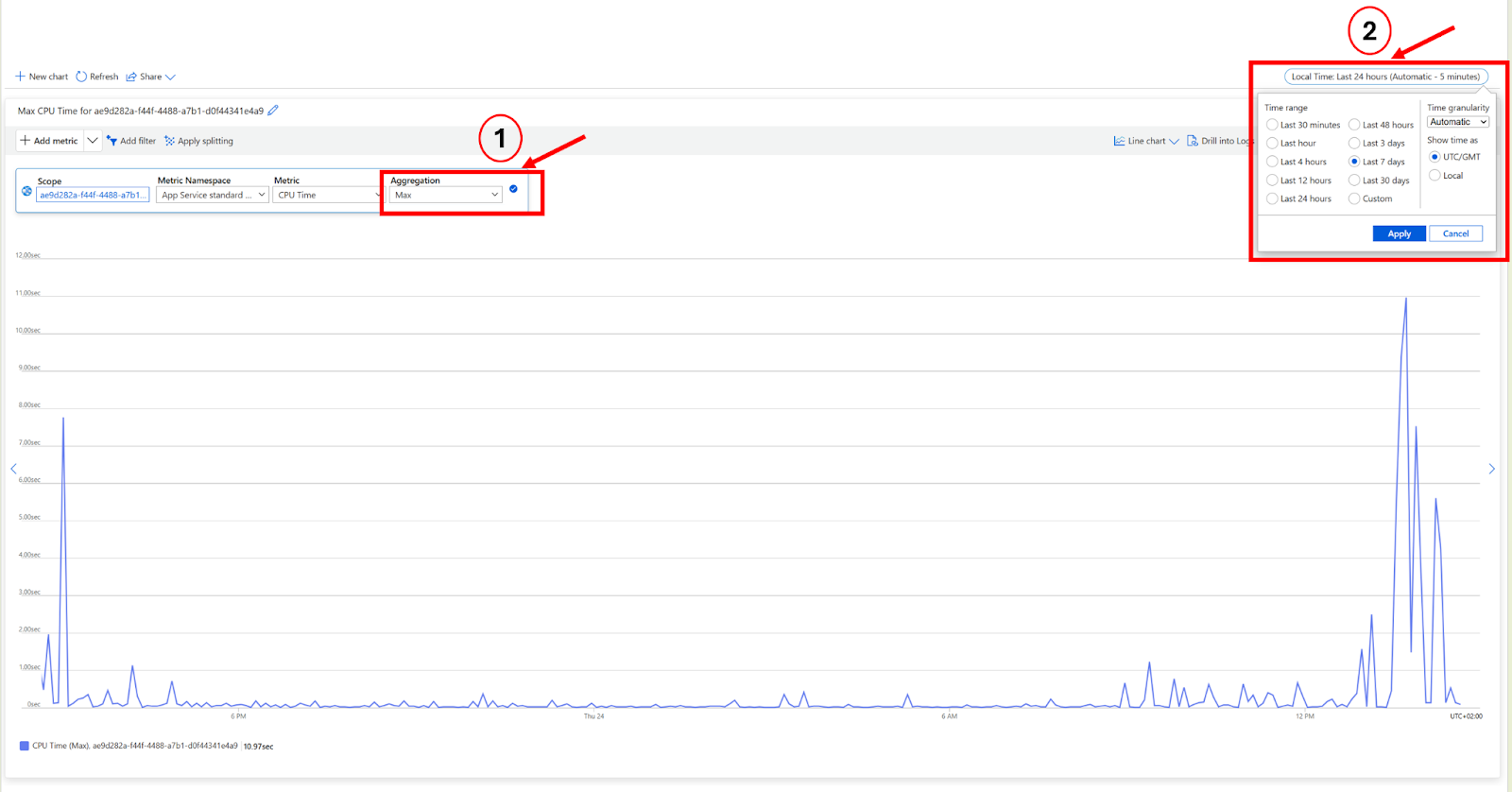
What it shows: A graph that visualizes how much of the database's resources are being used over time. The main thing to look for is the DTU percentage, which shows how “busy” the database is.
What is a DTU?
A DTU (Database Throughput Unit) is a measurement used by Azure to describe how much power your SQL Database has. It combines CPU, memory, and read/write speed into one single number so it’s easier to monitor performance.
You don’t need to know all the technical details behind it. Just remember this:
Low DTU usage (for example, under 50%) = your database is relaxed and can handle more work
High DTU usage (close to 100%) = your database is working very hard and may slow down or block other requests
Why it matters:
The SQL Database is where Umbraco stores all its structured data, everything from content and media references to user accounts and scheduled publishing. If this database becomes overloaded (too many requests at once, or a query that takes too long), it can slow down or even temporarily crash your Umbraco site.
Analogy:
Think of your SQL Database like a librarian in a busy library. If only a few people are asking for books, things move quickly. But if everyone asks questions at the same time, the librarian slows down, and people start waiting in line. The DTU percentage shows how overwhelmed your "librarian" is.
Performance issues caused by high DTU usage
1. Slow page loads in Umbraco
Pages that rely on database calls (like content-heavy pages, dashboards, or member logins) may load much more slowly or not at all.
2. Timeouts and errors
When the database is under too much load, it may start rejecting queries or taking too long to respond. This can result in:
"Timeout expired" messages
500 Internal Server Errors
Content not rendering properly
3. Backend becomes unresponsive
If the Umbraco backoffice needs to fetch data for content editing, media management, or deploying changes—and the database is too busy—these actions may freeze or fail.
4. Deployments may fail
Umbraco deployments often include schema changes or data insertions. If the DTU is already high, the database might not respond in time, causing the deployment to fail.
5. Increased queue times for scheduled tasks
Background operations like scheduled publishing, examine indexing, or third-party integrations might get delayed or skipped.
When to use:
Check this when customers report downtime or major slowness. If the DTU graph shows a sharp spike during that time, it's likely the database was the bottleneck.
Tips:
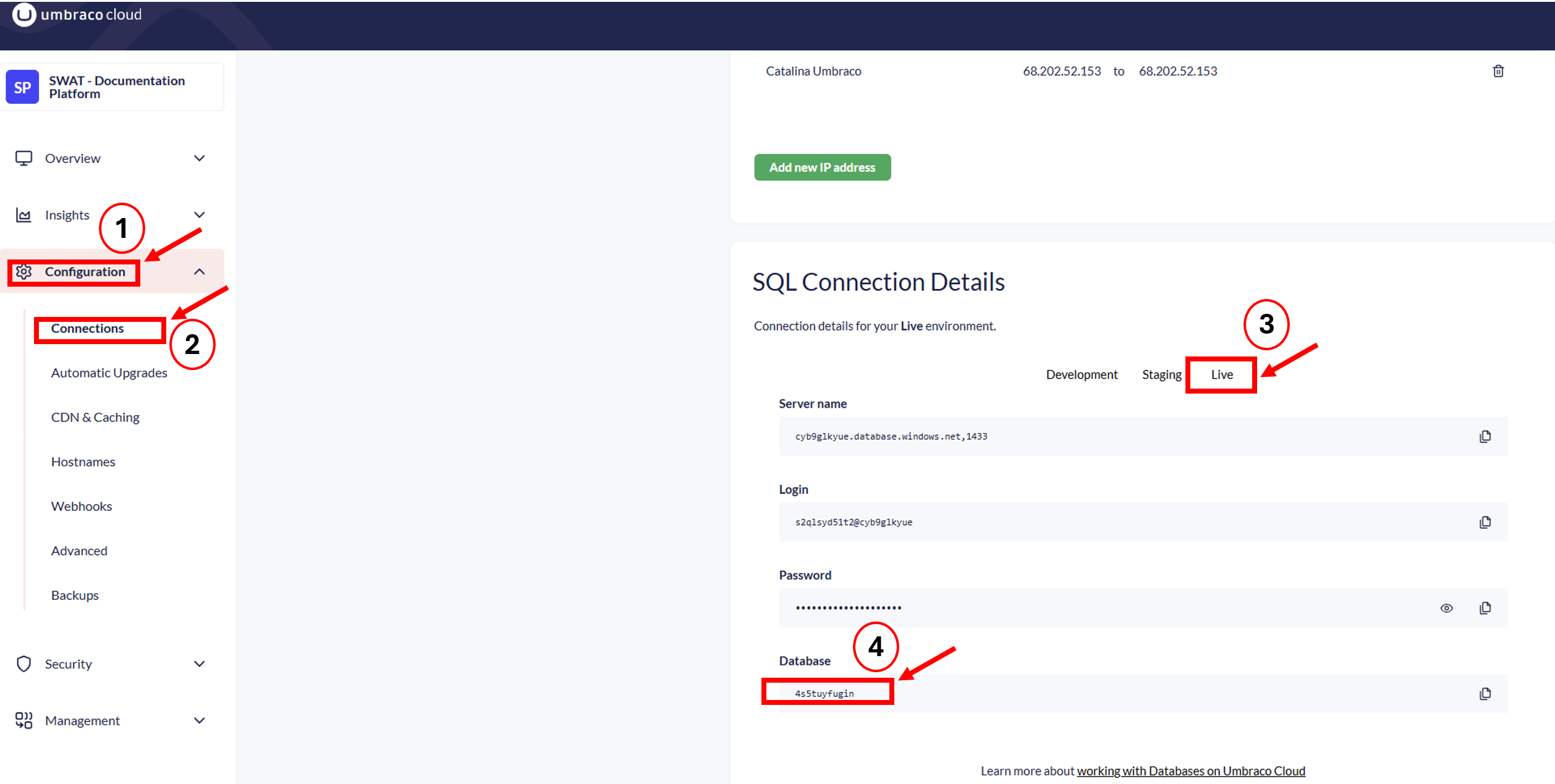
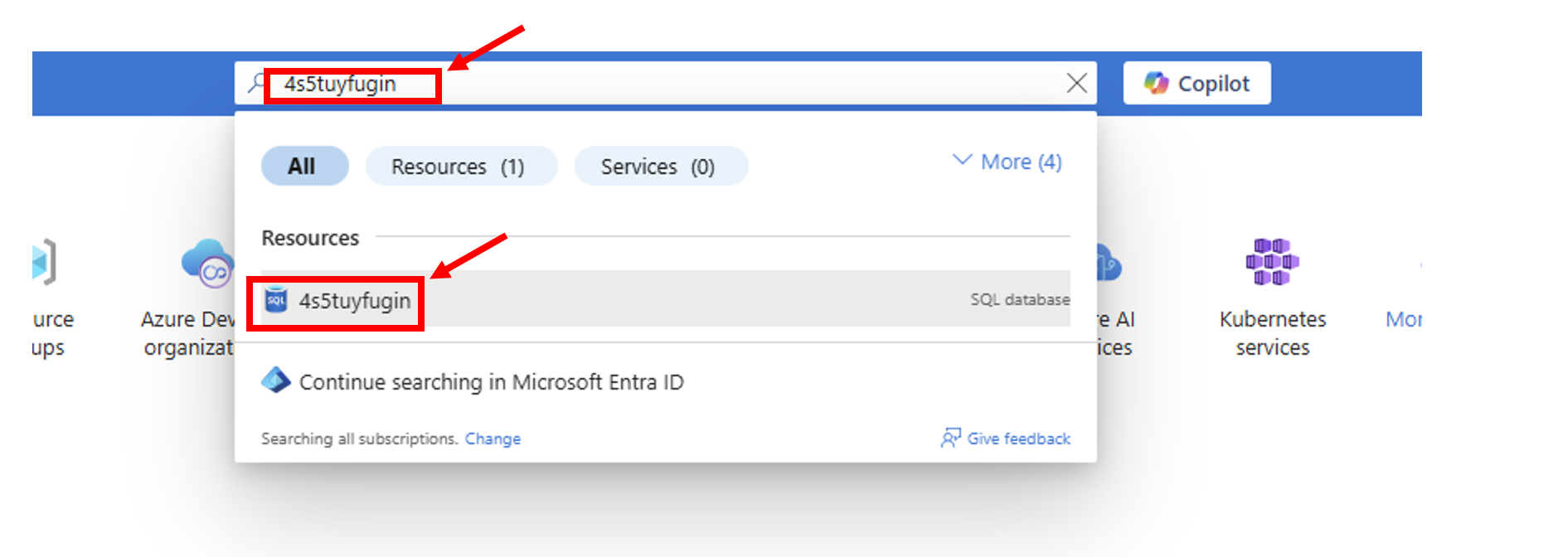
In Azure, you can search for the database by name (e.g., wjy1sq5zcyg)
Look at the DTU % over time to identify if the issue was a one-time spike or part of a trend
Click "See all metrics" to get more detailed breakdowns like storage usage, deadlocks, and query wait times
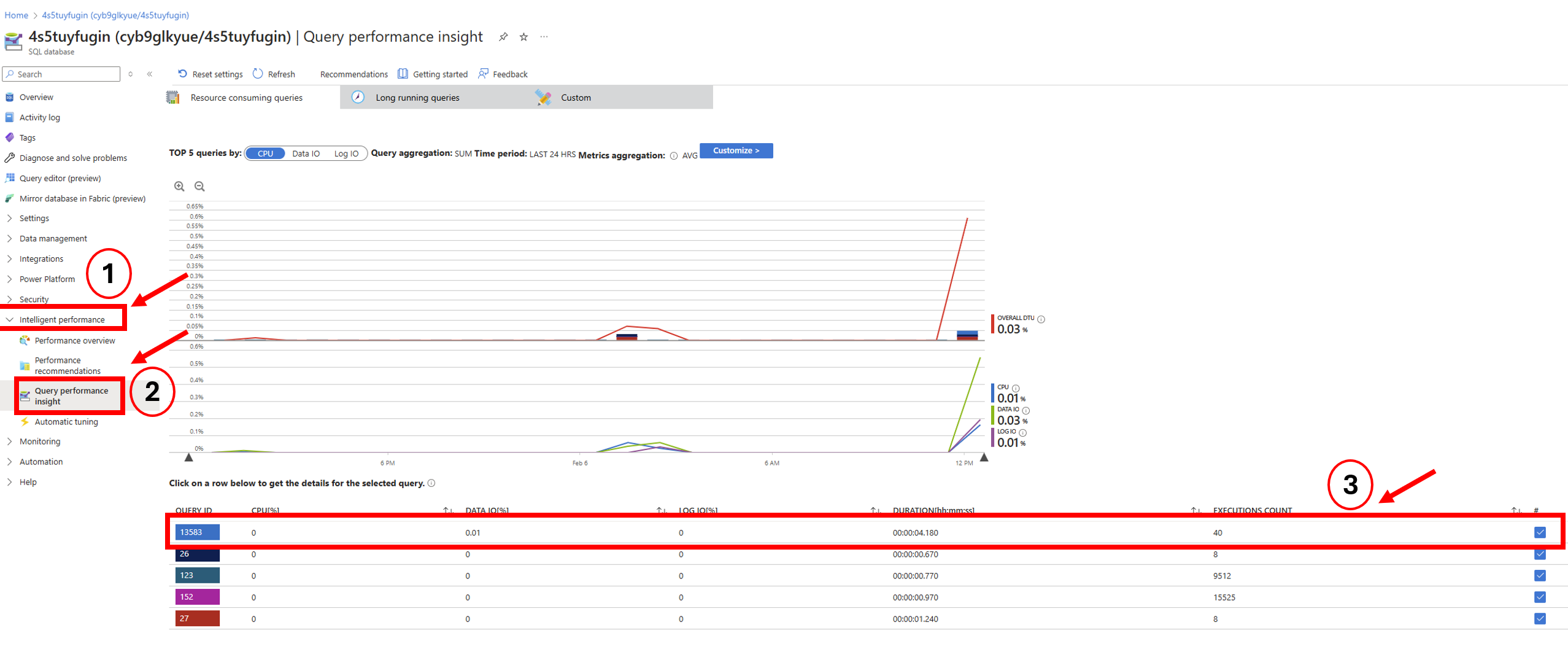
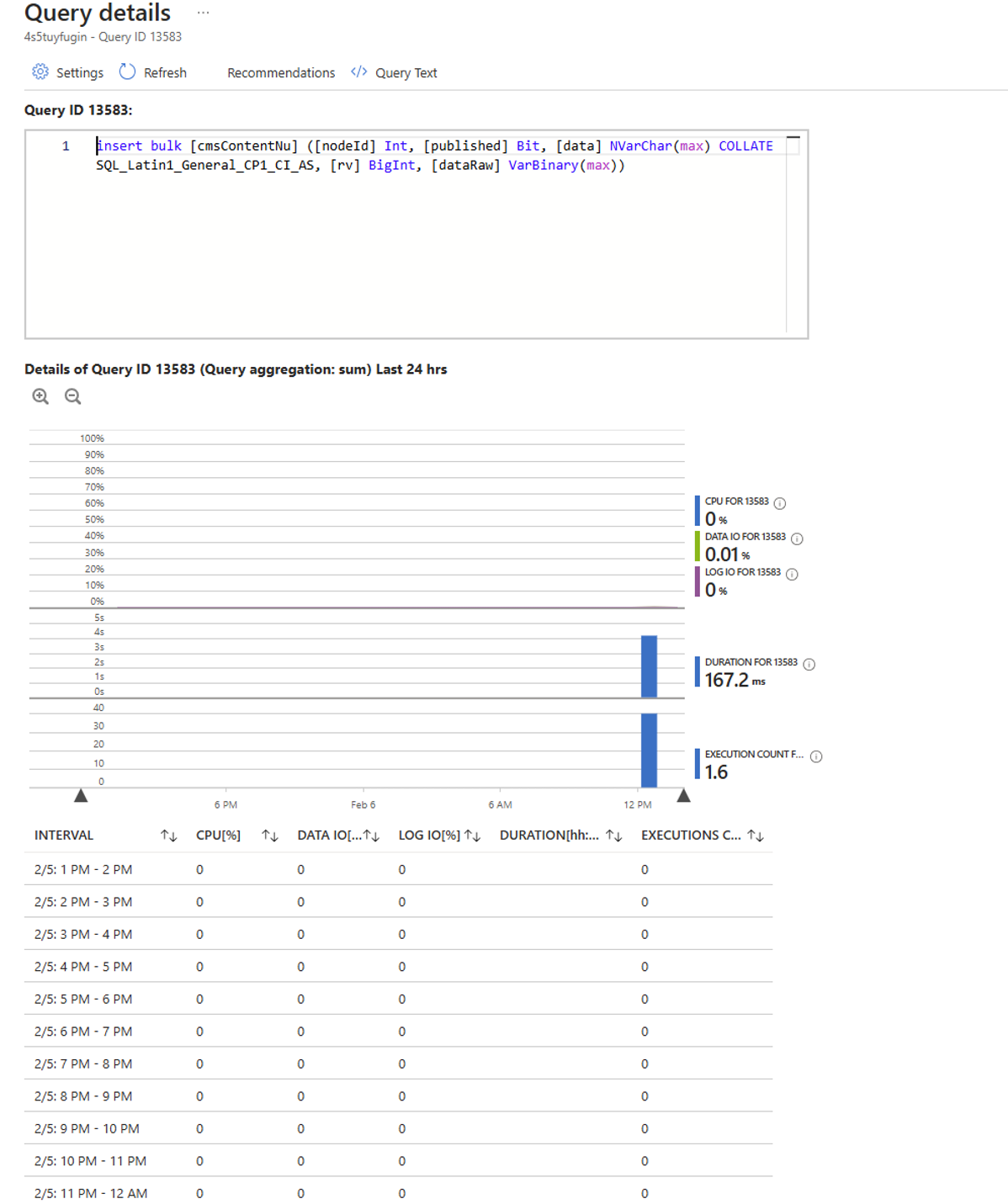
Advanced (Optional):
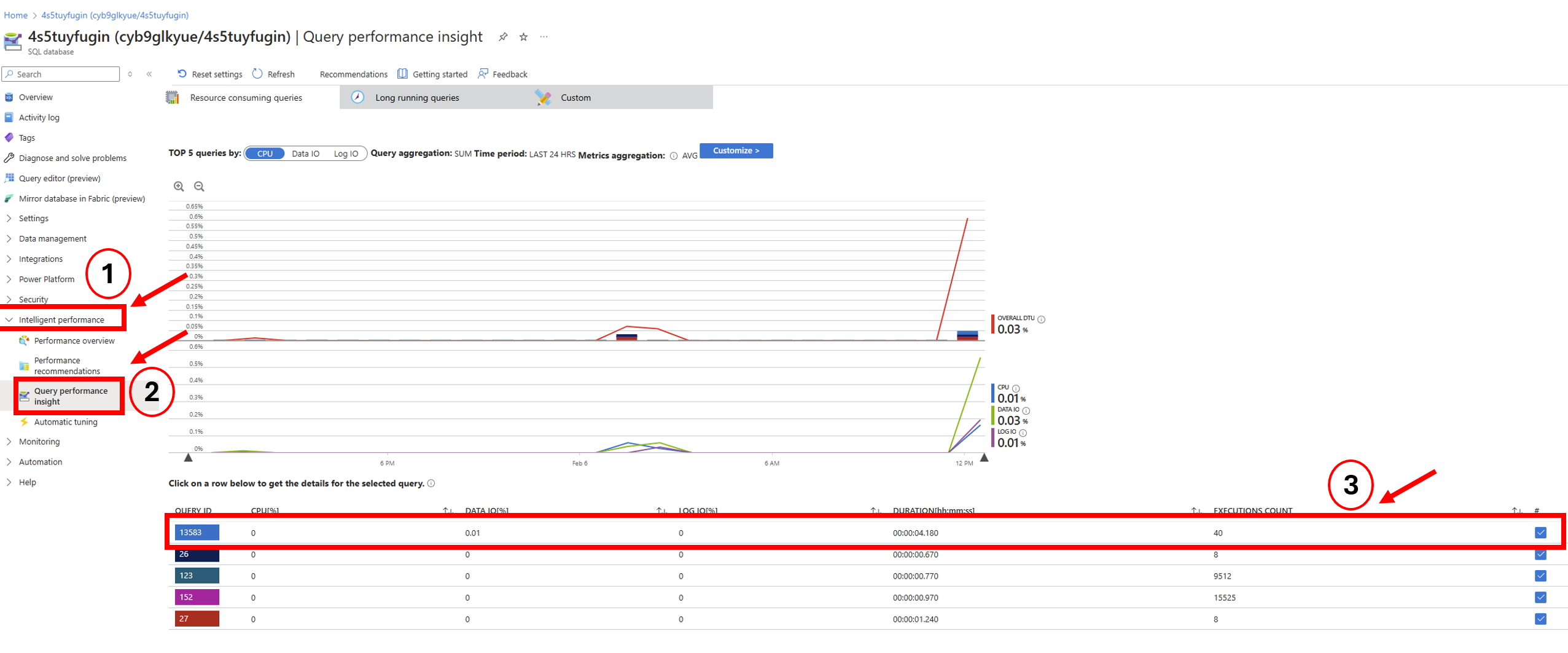
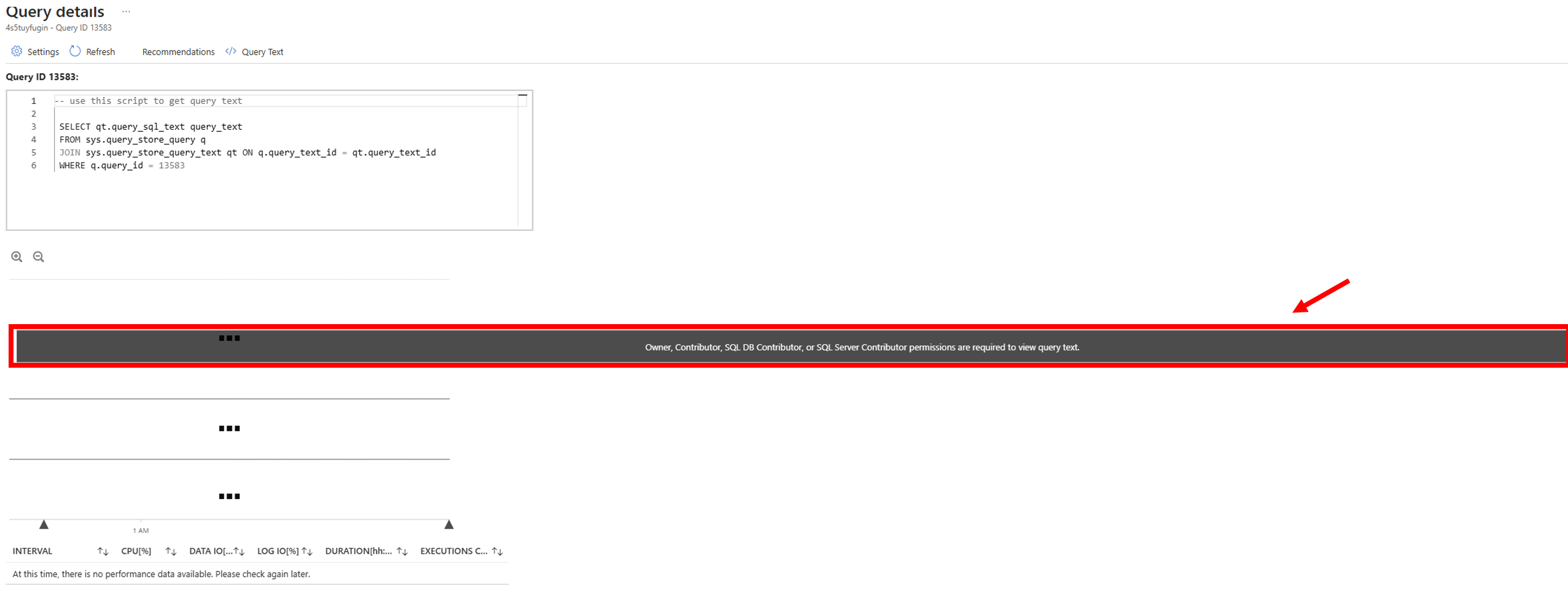
If needed, Azure also has tools like Query Performance Insight, which show which specific SQL commands or scheduled tasks were using the most resources. If you want to read ore about this, please see this article: